# Zello SDK Documentation
Zello SDK for developers. Add push-to-talk voice, messaging, channels, and alerts to your iOS, Android, and React Native apps. Guides, example apps, and API reference.
## Overview
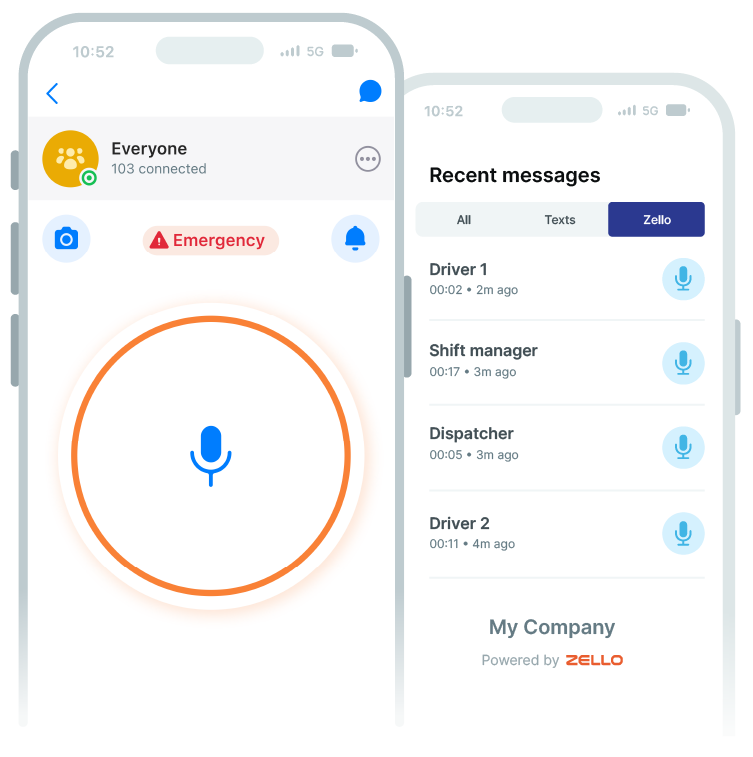
Zello—one of the world’s leading push-to-talk apps—transforms Android, iOS, and Windows PC platforms into walkie-talkies through the power of live voice push-to-talk functionality. Our feature-rich platform securely connects your team in a private, managed, and reliable environment for seamless collaboration and connectivity when it matters most.
This SDK allows you to integrate Zello’s core features directly into your own environment, leveraging our scalable, reliable, and secure platform to strengthen your communications infrastructure. It’s available for iOS, Android, and React Native environments, and provides two installation options: a highly-configurable blank installation package, and a “batteries-included” example app.
### Available Features
While not every feature included in our native app is available through the SDK, much of our core functionality can be replicated in your environment. Currently, available features include:
| **Feature** | **Explanation** |
| ----------------------------- | ----------------------------------------------------------------------------------------------------------------------------------------------------------------------------------------------------------------------------------------------------------------------------------------------------------------------------------------------------------------------------------------------------------------------------------------------------------------------------------------------------------------- |
| Messaging |
The SDK’s messaging functionality allows the following to be sent via both 1:1 and channel messages:
|
| Channel Alerts | A channel alert is a distinct, high-priority channel message that’s delivered via a unique text notification and three audible beeps. Only assigned users can send a channel alert. [Learn more.](https://support.zello.com/zw/sending-channel-alerts) |
| Dispatch Calls | This tool allows drivers to enter an automatically-organized dispatch call queue. When a dispatcher accepts the call, a 1:1 message between the dispatcher and driver begins. This keeps information concentrated and organized, and works to effectively minimize chatter associated with traditional radios. [Learn more about mobile dispatch calls.](https://support.zello.com/zw/mobile-dispatchers-ios-and-android) |
| Ad Hoc Channels | Ad hoc channels allows users to send on-the-fly group messages to their direct contacts. They're best suited for quick, temporary communications, as they lack to the advanced configuration capabilities available in regular network channels. [Learn more about ad hoc channels.](https://support.zello.com/zw/group-conversations) |
| Message History + Replay |
By default, message history is stored locally on a user’s device. This ensures all communications—voice, text, image, and locations—can be referenced and retrieved at any time. Voice messages in particular can be replayed as needed.
Duration of storage is dependent on the in-use device’s capacity. Please note that additional UI elements can be designed to enhance the display and management of local device history on the SDK.
|
| Profile Information |
Each user profile includes elements such as profile pictures, display names, and user-specific settings that can be configured by either a network admin or users themselves. This information provides a customizable, efficient, and intuitive communications experience that’s tailored to individual needs and environments.
Profiles are configured by network admins from either the management console or Zello’s API.
|
| Mute Control | Users retain the ability to selectively [mute](https://support.zello.com/zw/muting-users-and-channels) channels and/or contacts in their Zello Work network, allowing for more focused communications when needed. |
| Emergency Alerts | Emergency alerts notify select network users of critical situations. When triggered, the alert sends 10 seconds of prioritized, uninterrupted audio from the sender’s device alongside their location data to a pre-configured channel. [Learn more.](https://support.zello.com/zw/emergency-alert-overview) |
| Availability Status | Zello Work’s statuses communicate personnel availability, as well as determine how and when you’ll receive messages. [Learn more about statuses.](https://support.zello.com/zw/understanding-statuses-on-zello) |
| Transcriptions + Translations | Automatic voice-to-text transcription and real-time translation into each user's language, so every team member can follow the conversation. Learn more about [transcriptions](https://support.zello.com/zw/transcriptions) and [translations](https://support.zello.com/zw/translations) |
We’ll continue update this documentation as new features are released.
## **SDK Quickstart Guide**
#### New to Zello’s SDK? Start here.
Zello’s SDK offers a powerful solution for integrating advanced communication features into your application. It simplifies the development process by providing pre-built functionalities that can be quickly and flexibly deployed within your existing infrastructure.
The SDK is available in 3 formats:
* iOS
* Android
* React Native
And 2 installation packages:
| Example App | The example app includes all available SDK features in one convenient package. It requires little technical knowledge to set up, and provides a solid testing ground for the blank installation package. |
| -------------------------- | -------------------------------------------------------------------------------------------------------------------------------------------------------------------------------------------------------- |
| Blank Installation Package | The blank installation package is ideal for those wanting to build something from scratch. It’s highly configurable and best used when Zello’s functionality is a core component of your product. |
For more information on the example app and blank installation package—including the use cases and development lift for each—see the **Example App vs. Blank Installation Package** section.
#### Minimum Supported Versions & Requirements
> More information can be found [here](https://support.zello.com/zw/minimum-system-requirements-to-use-zello-applications).
* Android 7+
* iOS 17+
**Note:** Although Zello can operate on older versions of these systems, we cannot guarantee it’ll be fully supported or function properly on an outdated OS.
### **Get Started with the SDK**
If you’re interested in the SDK, we recommend creating a Zello Work network and downloading an example app for demonstration of the kit’s capabilities.
#### Step 1: Obtain Network Credentials
**Zello Work** network credentials are **required** to connect to a network and fully leverage the SDK. Credentials include the following components:
* Username
* Password
* Network name
Admins obtain Zello Work credentials upon network creation. Thereafter, individual user credentials are assigned by the network admin. For more information about network credentials, visit .
#### Step 2: Download an Example App
Once you’ve obtained your Zello Work credentials, download one of the following example apps to explore the SDK’s functionality.
* [iOS](https://github.com/zelloptt/zello-ios-sdk-example) (native)
* [Android](https://github.com/zelloptt/zello-android-sdk-example) (native)
* [React Native](https://github.com/zelloptt/react-native-zello-sdk/tree/master/example) (iOS and Android)
Example apps demonstrate the SDK’s functionality in real-time. Their installation is significantly easier than a blank package, and we accordingly recommend starting with an example app to understand the SDK’s full capabilities and applicability to your use case. From there, you may decide to leverage Zello’s blank installation package for a more tailored, configurable experience. See the ***Example App vs. Blank Installation Package*** section for more information.
### **Example App vs. Blank Installation Package**
The table below outlines the differences between the blank installation package and example app.
| **Aspect** | **Blank Installation Package** | **Example App** |
| ------------------------- | ------------------------------------------------------------------------------------------------------------------------------------------------------------------------------------------------------------------------------------------------------------------------------------------------------------------------------------------------------------------------------------------------------------------------------------------------------------------------------------------ | ------------------------------------------------------------------------------------------------------------------------------------------------------------------------------------------------------------------------------------------------------------------------------------------------------------------------------------------------------------------------------------------------------------------------------------------------------------------------------ |
| **Purpose** |
The blank installation package is highly configurable. It’s best for those who are:
Seeking to integrate a comprehensive communications infrastructure into their product.
Comfortable building the functionality from the ground-up.
While the SDK provides the necessary components for each Zello feature, you control how everything is integrated and customized—including which features are added, how they interact, and their UI.
|
The example app is a “batteries included” installation package. Its purpose is twofold:
Demonstrate the SDK’s functionality in real-time.
Provide an accessible, ready-to-use installation package that includes all available features.
The example app offers a bare-bones UI that can be further refined to your branding standards. Additional capabilities outside of Zello’s scope can be integrated via API if desired.
|
| **Use** **Case** | This package is best used in cases where the SDK’s features are critical to your product’s functionality, or in cases where you’d like to selectively incorporate Zello’s features into your product. | You may find the example app useful as a starting point or proof of concept for the blank installation package; building the example app and adding in your branding can demonstrate the potential benefit of the SDK for your infrastructure. |
| **Installation Timeline** |
While running the installation package itself will only take about an hour, configuration of the SDK’s features is expected to take several weeks.
The exact timeline is largely dependent on the number of features you’d like to call up, but keep in mind that each item must be added and configured individually.
| Installation is quick and relatively low-lift. Expect installation to take an hour at most. |
| **Installation Level** | Building the blank installation package is a complex process. We recommend that a seasoned developer with expertise in the relevant environment (React Native, iOS, Android) handle installation. | The example app takes little to no development experience to build. |
| **Features** | Features can be added one-by-one as your technology requires, providing a fully-customizable experience that suits your specific use case. | All features available in the SDK are automatically included in the example app’s installation package. |
| **Flexibility** | The blank installation package can be flexibly deployed in your environment. You choose which features to integrate and how, allowing for customization that aligns with your use case. | The example app includes all available SDK features and affords a lower level of customization. You may still modify the UI and branding or integrate your own API as needed. |
## Going live with your Zello-enabled app or service
All apps using the Zello SDK must adhere to the following:
* All UI screens embedding the Zello SDK must include the Zello logo
* Use the Zello logo and "Zello" name when referencing Zello-powered features inside of your app or service
* [Send us the app for approval](https://zello.com/contact/) before distributing to any third parties or customers
# Network Credentials
### Intro to Zello Work Credentials
The SDK integrates with [Zello Work](https://support.zello.com/zw/overview-of-zello-work), Zello’s managed, secure, and configurable PTT solution. Zello Work subscriptions are defined by one (or many) company-specific private networks that host customizable settings, channels, and user privileges. Access to these private networks is restricted to those who have been assigned credentials by a network admin, ensuring all communications are protected and solely accessible by intended parties.
Consequently, all SDK functionality—including integration and use of example apps—requires users to sign in with their Zello Work network credentials. Network credentials include three elements:
* Username
* Password
* [Network name](https://support.zello.com/zw/what-is-a-zello-work-network)
These credentials are administered and managed by a [network admin](https://support.zello.com/zw/admin-types-primary-secondary-and-sub-admin) (see **How to Obtain Credentials** below). Access to Zello Work is only possible with all three elements.
{% hint style="info" %}
The person who establishes the network will be automatically designated as an admin, but [additional admins](https://support.zello.com/zw/admin-types-primary-secondary-and-sub-admin) can be added later. See [this link ](https://zellowork.com/home.html)for assistance starting your Zello Work trial.
{% endhint %}
###
### How To Obtain Credentials
Admins centrally manage all users' network credentials through the[ management console](https://support.zello.com/zw/admins). They are responsible for [adding and configuring network users](https://support.zello.com/zw/adding-users-to-the-network), including the creation of a user’s username and password.
If you’re joining an existing Zello Work network, an admin will assign your credentials. You don’t need to create an account yourself—simply sign in to Zello Work with your username, password, and network name provided by the admin.
\\
# User + Channel Provisioning
### Network Credentials
Each SDK user must have a unique set of Zello Work credentials, which includes a username, password, and network name. For more information, please visit the [Network Credentials](https://sdk.zello.com/core-concepts/network-credentials) page.
### User Provisioning
User credentials can only be used on one device at a time. If two users try to access Zello Work simultaneously with the same credentials, one user will be automatically disconnected. For this reason—and because all communications are tied to a specific user— it’s best to assign each individual their own set of credentials.
Network admins can create individual user accounts from the management console—either [manually](https://support.zello.com/zw/adding-users-to-the-network) or via [CSV import](https://support.zello.com/zw/user-import-and-export)—or by using the [Zello Work API](https://zellowork.com/api.htm).
### Channel Provisioning
Channels facilitate quick communication among subsets of assigned network users. Like users, channels can be created from the management console—either [manually](https://support.zello.com/zw/creating-and-configuring-channels-management-console) or via [CSV import](https://support.zello.com/zw/channel-import)—or by using the [Zello Work API](https://zellowork.com/api.htm). This ensures communications remain targeted, secure, and unified.
[Learn more about channels.](https://support.zello.com/zw/zello-work-channels-quick-guide)
# Background Work + Push Notifications
## Android
### Background Work
The Android SDK includes a foreground service that enables your application to continue running when it’s not in the foreground (i.e. it’s in the background). It will remain active from `Zello.connect()` until `Zello.disconnect()`.
This service is required for your app to work when it’s in the background. If background operation is not necessary—or if you have your own foreground service—you can disable the SDK’s foreground service using the `Zello.configure()` method.
Additionally, the SDK will display a notification prompting the user to disable battery optimizations.
### Push Notifications
To send push notifications to Android devices via the SDK, Zello uses [Firebase Cloud Messaging](https://firebase.google.com/docs/cloud-messaging) (FCM). Push notifications are used differently for direct contacts and channels:
| Direct Contacts | Used for all messages sent to direct contacts in [Standby](https://support.zello.com/zw/standby-status) status. |
| --------------- | -------------------------------------------------------------------------------------------------------------------------------------------- |
| Channels | Used for [channel alerts](https://support.zello.com/zw/sending-channel-alerts) sent at the “Everyone” level. This includes emergency alerts. |
**Enabling/Disabling Push Notifications**
If you’d like to push notifications on your Android application, first add FCM to your project. Then, email us at . We will enable a feature on our Zello Work Console to allow you to upload your FCM key. This key will be securely stored on Zello’s servers, and will allow us to send your users push notifications.
Alternatively, if you currently have push notifications enabled in the SDK and would like to disable them, opt out using the `Zello.configure()` method.
### iOS
#### Background Work
Please see the [iOS Getting Started guide](https://developers.zello.com/sdk/latest/ios/documentation/zellosdk/getting-started#Allow-Zello-to-Run-in-the-Background) for project setup.
**Push to Talk Framework Setup**
Please see the [iOS Getting Started Guide](https://developers.zello.com/sdk/latest/ios/documentation/zellosdk/getting-started#Configure-the-Push-to-Talk-Framework) for project setup.
#### Push Notifications
Please see the [iOS Getting Started Guide](https://developers.zello.com/sdk/latest/ios/documentation/zellosdk/getting-started#Configure-a-Notification-Service-Extension) for project setup.
Zello uses Apple’s servers to deliver push notifications. Please email your APN key to to enable push notifications for your network. The APN key will be securely stored on our servers.\
\\
# Permissions
### Android
The Android SDK includes its own `AndroidManifest.xml` file that will merge with your application’s manifest. Accordingly, all required permissions will be automatically included.
For clarity and transparency, below you’ll find a list of the permissions that are required and their use case:
```
// Networking
// Voice messages
// Background work
// Working with bluetooth accessories
// Android 14+ foreground service types
// Used for location messages, as well as our geotracking "Map" feature available through the Zello Work console.
// Additionally, used for Bluetooth scanning
// Vibrating the phone when a message is received
// Android 7 permissions to store history. Not needed if your app targets Android 8+
```
You will need to request these permissions (audio, post notifications, location, bluetooth) wherever it makes sense for your application, but before you use these Zello SDK features.
Although the SDK does not include the permission `ACCESS_BACKGROUND_LOCATION` by default, you may choose to add it to your manifest. It must be granted for location services to work in cases where your app is signing into the SDK while running in the background.
### iOS
The iOS SDK uses the following permissions:
1. Notifications
2. Microphone
1. Sending audio messages
3. Bluetooth
1. Connecting to bluetooth accessories
4. Location
1. Location messages, as well as our geotracking "Map" feature available through the Zello Work console.
After the **notifications** permission has been granted, call the `Zello.registerForRemoteNotifications(deviceToken:)` function.
# Advanced Networking + Security
### Advanced Networking
If your users will be using a firewall that blocks traffic except from whitelisted IP’s/ports, please contact us at to obtain a copy of our IP address list.
### Security
For more information, please see [Zello | Technical and Organizational Security Measures](https://zello.com/legal/security-measures/)
Voice and rich media data transits the public internet encrypted by 256 bit AES, passing from sender device to receiver device through Zello servers. Under no circumstances do we store this data, EXCEPT:
* When [Message Vault](https://support.zello.com/zw/zello-work-message-vault) is enabled by the customer, in which case encrypted data will be saved—along with the original client key—for up to 2 years
* When a voice message is a direct 1:1 communication and the recipient is offline, in which case the encrypted data will be stored for redelivery for up to 7 days. Once redelivered, the data is deleted
Voice and rich media data will be stored on the recipient device UNLESS:
* It is prevented by [configuration](https://support.zello.com/zw/can-i-control-history-from-the-management-console)
* It is automatically deleted by policy (expiration time)
* It is manually deleted by the user
Voice and rich media data on a recipient device is encrypted at the operating system level on iOS and suitably configured versions of Android 7+
Additionally, we use:
* 1024 bit RSA for authentication, digital signatures and secure media session keys exchange
* TLS for control traffic encryption between Zello client and Zello server
* All API communication occurs over HTTP/S
IBM Cloud erases data using a DOD 5220.22-M grade algorithm. This ensures that any residual drive data is destroyed. This process is monitored, logged and tracked. Once complete the drive is ready to be redeployed to a new customer.
If a drive fails the wipe process or reaches end of life, it is taken out of commission and physically destroyed.
# Android Firebase Integration
The Zello Android SDK uses Firebase to support push notifications. These are used both for user notifications as well as in the background to wake the application process to ensure continuous delivery of messages even while your application is not displayed on the screen. Basic functionality of the Zello SDK will work without a Firebase connection, so it is not required that you connect to a Firebase instance; however, if you do wish to connect to Firebase, you should follow the steps below
#### Add Google Services Plugin to Your Gradle Files
In your top-level Gradle file:
```
// Top-level build file where you can add configuration options common to all sub-projects/modules.
plugins {
id("com.google.gms.google-services") version "4.4.1" apply false
// Other plugins
}
```
In your app/module-level Gradle file:
```
plugins {
id("com.google.gms.google-services") version "4.4.1"
// Other plugins
}
```
#### Create a Firebase Project and Add Your Application
In the [Firebase console](https://console.firebase.google.com/?_gl=1*zgzqts*_ga*NDg0NjI1MDIxLjE3MjMwNDQ1ODI.*_ga_CW55HF8NVT*MTcyMzA0NDU4Mi4xLjEuMTcyMzA0NDYwMC40Mi4wLjA.) select “Add app” and enter your project’s package name. This will generate a `google-services.json` file which you will include with your project. For more detailed instructions, see the [Firebase setup guide](https://firebase.google.com/docs/android/setup)
Once you have obtained the `google-services.json` file, add it to the Android application module directory in your project. In other words the path will be something like: `yourprojectsdirectory/yourprojectname/app/google-services.json`
# Android Installation Guide
Zello’s Android SDK is a fully-native set of libraries that provides APIs for connecting with Zello servers, enabling tasks such as authentication and message sending. You can add the SDK to your project using Gradle, similar to how you would add other libraries. However, you will also need to add a Zello-hosted Maven repository to access the compiled code.
### Prerequisites:
* An Android build environment that includes Gradle.
* [Hilt](https://developer.android.com/training/dependency-injection/hilt-android) dependency injection, which is required for the SDK to properly initialize.
* Android SDK 24+
### Adding Zello SDK to your project:
Add the Zello-hosted repository that contains our SDK to the section where your Gradle configuration defines repositories.
For example, your top-level build.gradle.kts file may contain this block:
```
allProjects {
repositories {
google()
mavenCentral()
maven {
url = uri("https://zello-sdk.s3.amazonaws.com/android/latest")
content {
includeGroup("com.zello")
}
}
// Other repos
}
}
```
We recommend using the google and mavenCentral repositories to load the transitive dependencies required by the Zello SDK. However, as long as your set of repositories includes all of Zello’s necessary dependencies, the SDK will run. The full list can be found below.
In your module-level or app-level `build.gradle.kts`, include the following:
```
// Set this to the lastest version
def zelloSdkVersion = "1.0.1"
dependencies {
implementation("com.zello:sdk:$zelloSdkVersion")
implementation("com.zello:core:$zelloSdkVersion") {
exclude(module = "unspecified")
}
implementation("com.zello:zello:$zelloSdkVersion")
// Firebase Messaging is used for push notifications and is a compile-time dependency
// used when generating dependency injectors
implementation(platform("com.google.firebase:firebase-bom:32.8.0"))
implementation("com.google.firebase:firebase-messaging")
// Other project dependencies
}
```
NOTE: The exclude(module = "unspecified") call is needed to account for an issue with a transitive dependency. This will be resolved in a future version of the SDK
\
NOTE: This step step should not be necessary for React Native integrations
### Transitive Dependencies:
The latest version of the Zello SDK includes the following dependencies transitively which must be resolved in order to prevent errors.
```
com.pixplicity.sharp:sharp
org.jetbrains.kotlin:kotlin-reflect
org.jetbrains.kotlinx:kotlinx-coroutines-core
org.jetbrains.kotlinx:kotlinx-coroutines-core-jvm
org.jetbrains.kotlinx:kotlinx-coroutines-android
com.squareup.moshi:moshi
com.squareup.moshi:moshi-kotlin
com.squareup.moshi:moshi-adapters
com.squareup:javapoet
androidx.constraintlayout:constraintlayout
androidx.constraintlayout:constraintlayout-solver
androidx.lifecycle:lifecycle-viewmodel-savedstate
androidx.lifecycle:lifecycle-viewmodel-ktx
androidx.lifecycle:lifecycle-common
androidx.lifecycle:lifecycle-livedata-ktx
androidx.navigation:navigation-fragment-ktx
androidx.navigation:navigation-ui-ktx
androidx.webkit:webkit
androidx.viewpager2:viewpager
androidx.appcompat:appcompat
androidx.appcompat:appcompat-resources
androidx.core:core-splashscreen
androidx.core:core-ktx
androidx.media:media
androidx.annotation:annotation
com.google.android.material:material
com.android.billingclient:billing-ktx
io.reactivex.rxjava3:rxjava
io.reactivex.rxjava3:rxandroid
io.reactivex.rxjava3:rxkotlin
androidx.activity:activity-compose
androidx.compose.ui:ui
androidx.compose.material:material
androidx.compose.ui:ui-graphics
androidx.compose.ui:ui-tooling
androidx.compose.ui:ui-tooling-preview
androidx.compose.runtime:runtime-livedata
androidx.constraintlayout:constraintlayout-compose
com.github.skydoves:balloon
androidx.browser:browser
androidx.legacy:legacy-support-v4
androidx.compose.material3:material3
com.google.android.gms:play-services-maps
com.google.android.gms:play-services-location
com.google.zxing:core
com.airbnb.android:lottie
com.drewnoakes:metadata-extractor
commons-validator:commons-validator
androidx.work:work-runtime-ktx
androidx.hilt:hilt-work
```